How to Import a Sprite Sheet in Unity (Step by Step)
November 3, 2026 · 7 min read
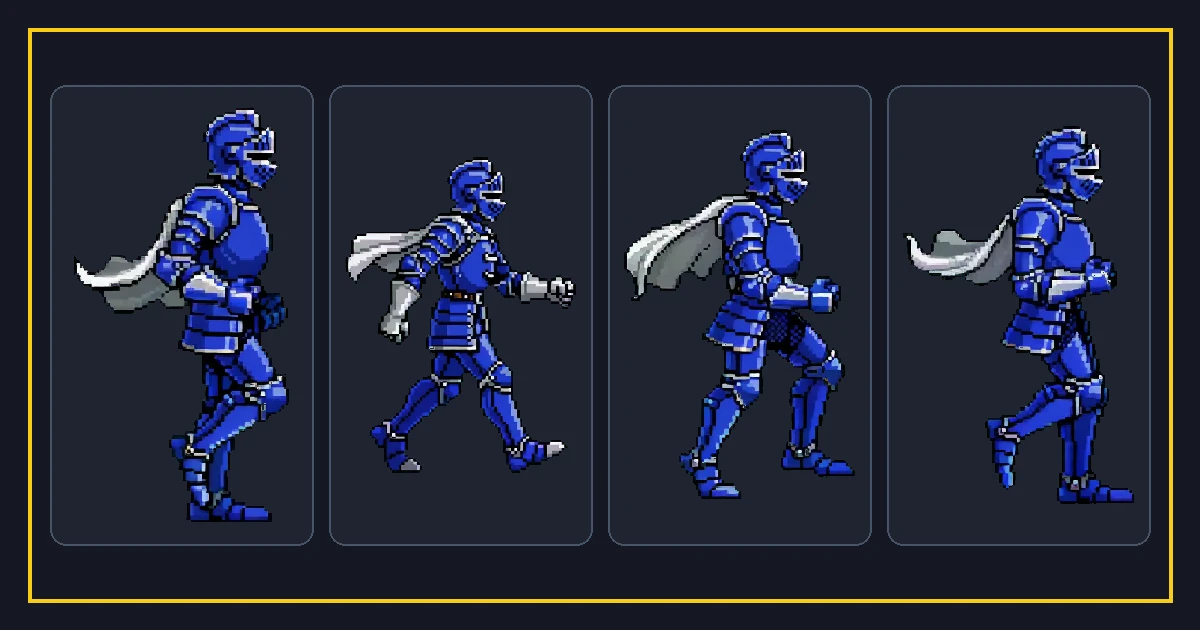
Unity will happily import a sprite sheet as one big flat image, and that is exactly the problem beginners hit. Unless you tell Unity the file contains multiple sprites, it treats the whole sheet as a single picture. Fixing that takes a few settings, and this guide covers each one in order.
The same steps work for a hand-drawn sheet and for a sheet produced by a packer. If your sheet ships with a manifest that lists each rectangle, you can slice by those numbers instead of guessing a grid.
Import the file and set the texture type
Drop the PNG into your Assets folder. Select it and open the Inspector. Set Texture Type to Sprite (2D and UI). This tells Unity the asset is a sprite rather than a generic texture.
Set Sprite Mode to Multiple. Single means the whole sheet is one sprite; Multiple means Unity slices it into many. Leave Wrap Mode on Clamp for sprites and set Filter Mode to Point (no filter) if you want crisp pixel and hand-drawn edges.
If you scale sprites up, Point filtering keeps hard edges. If your art is high resolution and you scale down, Bilinear or Trilinear can look smoother. The right choice depends on your art, but do not leave it on the default without thinking about it.
Slice the sheet into individual sprites
Open the Sprite Editor from the Inspector. Click Slice. Choose Grid By Cell Size and enter your cell width and height. If your sheet has padding between frames, set the padding fields too, or every frame after the first will be offset.
If the sheet came with a manifest, use Slice, then adjust the numbers to match the rectangles in the manifest. You can also switch to Grid By Cell Count if you know the column and row count. After slicing, press Apply.
Check the result in the Sprite Editor window. Each frame should sit inside its own box with the character centered. If a frame is cut off, your cell size is wrong. Fix it before you move on, because animation clips built on bad slices are painful to redo.
Set Pixels Per Unit correctly
Pixels Per Unit controls how big the sprite appears in the scene. It is the number of image pixels that equal one Unity unit. If a character is 64 pixels tall and you want it to be one unit tall, set Pixels Per Unit to 64.
Keep the same Pixels Per Unit across every sprite that shares a scene. If one sprite uses 64 and another uses 100, the characters will be different sizes even though they were drawn at the same scale. This is a very common source of size bugs.
You can set it per file in the Inspector, or in a Sprite Atlas if you use one. Either is fine, as long as the whole cast agrees.
Build an animation clip from the frames
Select the sliced frames and drag them into the scene, or open the Animation window and create a new clip. Drop the frames onto the timeline in order. Unity creates a keyframe for each one.
Set the sample rate to match your intended frame rate. The number of samples per second in the clip is the playback speed. Eight samples per second is a classic walk; twelve to fifteen is smoother.
If your manifest lists a frame rate, use the same number here so the clip matches the source. Enable loop time on the clip so the animation repeats. Then preview it in the Animation window before wiring it into a controller.
Common Unity pitfalls
The first pitfall is forgetting Sprite Mode Multiple, which leaves you with one giant sprite. The second is a wrong Pixels Per Unit, which makes some characters giants and others ants.
The third is bleeding at frame edges, usually caused by filtering without padding. Add padding in the slicer or extrude the edges. The fourth is animation speed that ignores the manifest, producing a walk that is too fast or too slow.
A final check: play the scene at the real camera size, not zoomed in. What looks sharp in the editor can look soft in the game window, and catching that early saves a rebuild.
Where the manifest helps
If you generated the sheet with a packer that writes a manifest.json, open it and read the frame rectangles, frame rate, and loop flag. Enter those numbers in the Sprite Editor and the Animation window instead of guessing.
That small file turns a fiddly manual step into a copy of known values. It also documents the sheet for teammates who did not make it. Unity does not read the manifest automatically, but it is the reference you want open while you slice.
Reusing import settings across characters
Once you get the import settings right for one sheet, save them as a preset. In Unity you can copy the import settings to other sheets, then adjust only the frame count. That keeps every character on the same texture type, filter mode, and Pixels Per Unit.
Keep a small note with the sheet that lists cell size, padding, Pixels Per Unit, and frame rate. When a teammate imports the same art, they do not have to reverse-engineer the grid or guess why one character is twice as tall as another.
If you generate many sheets with the same cell size, the whole cast becomes interchangeable. You can swap a walk clip between characters without reslicing, because the grid and the baseline already match. That consistency is worth a minute of setup on the first sheet.
Batch the import when you can: select several sheets and apply the preset once, then spot-check one frame in each to confirm the grid matches.
FAQ
Frequently asked questions.
Why is my sprite sheet imported as one image in Unity?+
What Pixels Per Unit should I use?+
How do I stop blurry sprites in Unity?+
Can Unity read a sprite sheet manifest directly?+
Do I need a Sprite Atlas too?+
Try it yourself
- Sprite Sheet Maker — Upload frames and pack an alpha PNG atlas with a matching JSON manifest — free.
- Sprite Sheet Slicer — Cut a packed sheet back into individual frames by grid or cell size.
- Sprite Animator — Preview a sprite sheet as a looping animation and tune the frame rate.
- How to Slice a Sprite Sheet (Grid and Irregular)