How to Slice a Sprite Sheet (Grid and Irregular)
November 6, 2026 · 6 min read
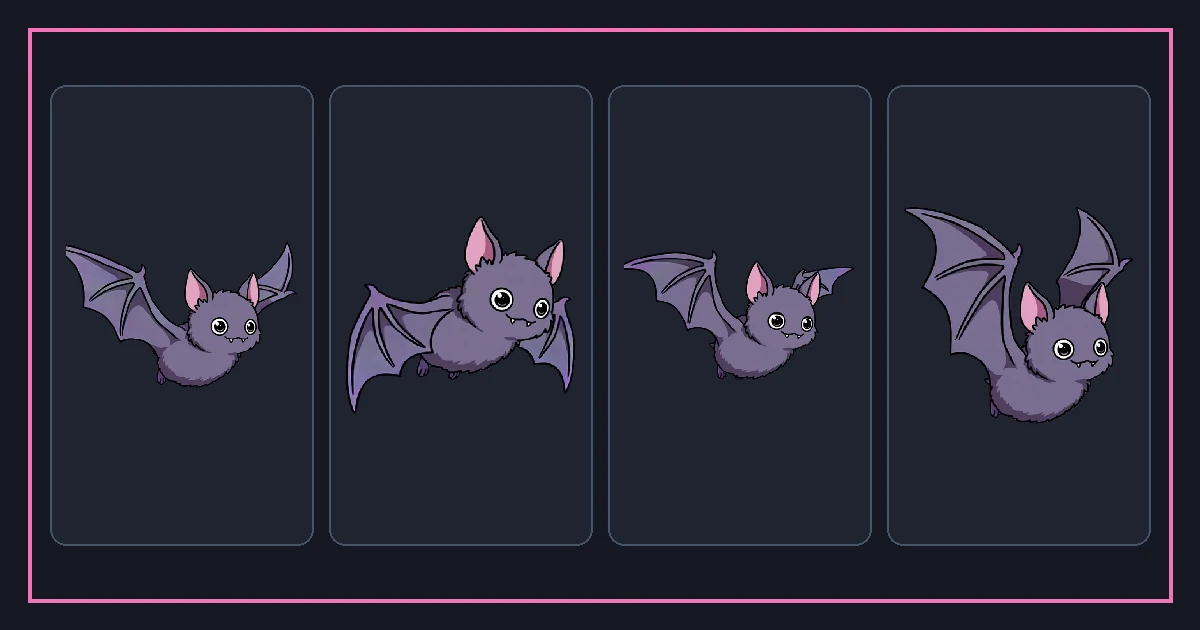
Slicing is the reverse of packing. You take one big image and cut it back into separate frames or separate images so you can edit, reuse, or repack them. It sounds trivial until you meet a sheet drawn on an uneven grid or packed without a consistent cell size.
This guide covers both cases, the numbers you need to get right, and how to keep the result consistent with a manifest so nothing downstream breaks.
Start by measuring the sheet
Open the image and note its exact width and height. Count the columns and rows. Divide width by columns and height by rows. If both divide evenly, you have a clean grid and slicing is simple.
If the division leaves a remainder, either your column count is wrong or the sheet has padding. Check for a uniform gap between cells. Margin around the outer edge counts too.
Write the numbers down before you cut anything: total size, columns, rows, cell width, cell height, and padding. Those five values define the whole sheet.
Slicing a clean grid
For a uniform grid, a slicer needs only the cell size and the padding. It walks left to right, top to bottom, and writes one image per cell. Every cell is identical in size, which keeps frames aligned.
Set the output naming so frames come out in order, such as name-0, name-1, and so on. Order matters because it is the animation timeline. If frames are numbered wrong, the motion will look wrong even if every drawing is perfect.
If the sheet is meant for an engine, you may not need separate files at all. Many engines slice the sheet at runtime given the cell size. Slicing to files is more useful when you want to edit the art.
Slicing an irregular sheet
Sometimes a sheet is packed tightly with different-sized images and no shared grid, like a texture atlas. Cutting on a fixed grid will chop through characters. Here you need rectangle-based slicing.
If the sheet has a manifest, it already contains the rectangle for every image: x, y, width, height. Feed those rectangles to your slicer and each piece comes out exactly right, regardless of layout.
If there is no manifest, you can detect content by looking at the alpha channel. The slicer finds connected regions of non-transparent pixels and treats each as one piece. This works well for separated sprites on a transparent background and fails when pieces touch.
Keep the manifest in sync
If you slice a sheet and then repack it, write a new manifest. The rectangles change with the layout, so an old manifest will point at the wrong pixels.
Treat the manifest as the single source of truth. Engines and tools read frame positions from it. If you edit the PNG by hand, regenerate the manifest or you will chase a bug that only appears at runtime.
When in doubt, slice, preview the animation, and confirm the loop. A correct manifest plus a correct loop is the whole job.
Common slicing mistakes
Cutting on a grid when the sheet is packed irregularly is the biggest one. It produces frames with bits of neighbors attached. Check whether cell sizes are uniform before you choose a grid slice.
Forgetting padding is the second. If cells touch, a few pixels of the next frame leak in and you get a sliver of a sword or cape on the edge. Include the padding in your numbers.
The third is losing the alpha channel by saving as JPG. Slice to PNG so transparency survives. The fourth is numbering frames out of order, which silently breaks the animation timing.
Slicing sheets for tiles and UI
Not every sheet is a character. Tilesets and UI kits are sheets too, and they need slightly different handling. A tileset is a grid of equal tiles, so grid slicing works perfectly, but the tiles usually abut with no padding because they are meant to touch.
For tiles, slice by exact tile size and export the tiles in reading order. If the tileset was designed to tile seamlessly, keep the outer edges intact and do not trim, or the seams will show when the tiles repeat in the map.
UI sheets are often irregular. A button, a panel, and an icon may all be different sizes. Grid slicing will chop them. Use the manifest rectangles, or alpha detection, to cut each element at its true bounds.
Slicing for nine-slice UI is its own case. The corners must stay fixed while the edges and center stretch. Keep the original proportions and record the border sizes so the engine can stretch the middle without squashing the corners.
When you slice a tileset or UI sheet, name the outputs by role, not by index. A tile called grass-01 is easier to place than tile-37. The index tells you where it sat on the sheet; the name tells you what it does.
If your engine reads the sheet directly at runtime instead of separate files, you still need correct numbers. Record the tile size, the margin, and the spacing, because a one-pixel error in spacing shifts every tile after the first and turns a clean map into a mismatched patchwork.
Always preview the reassembled sheet after slicing. A tile that is one pixel short will show a hairline seam when repeated, and a UI panel that lost its border will look broken. The preview catches both before they reach the game. Keep a copy of the original sheet; it is your fallback if a slice is wrong, and name the copy with the cell size so future you does not guess.
FAQ
Frequently asked questions.
How do I slice a sprite sheet without a manifest?+
Can I slice a sheet and repack it in a different layout?+
Why are there slivers of other frames on my sliced sprites?+
Does slicing change image quality?+
Try it yourself
- Sprite Sheet Slicer — Cut a packed sheet back into individual frames by grid or cell size.
- Sprite Sheet Maker — Upload frames and pack an alpha PNG atlas with a matching JSON manifest — free.
- Image to Sprite Sheet — Turn a single image into a multi-frame sprite sheet with AI.
- Sprite Sheet vs Texture Atlas: What Is the Difference?