How to Choose the Best Sprite Sheet Maker
November 7, 2026 · 6 min read
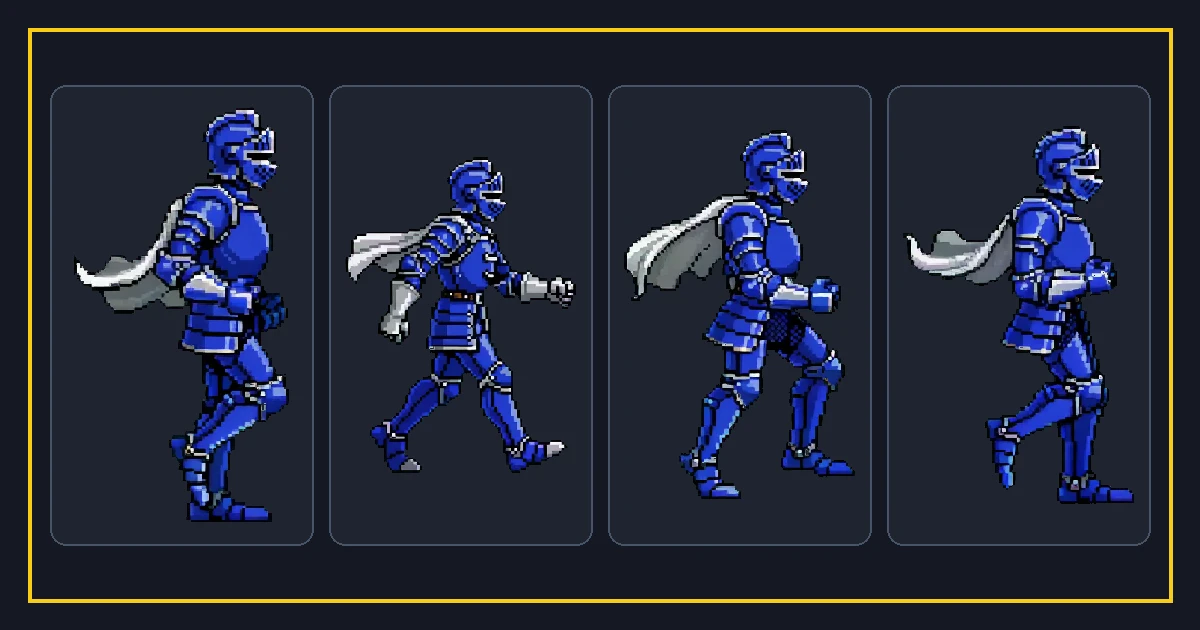
Search for a sprite sheet maker and you get a wall of tools that all claim to be the best. Most of them pack images into a grid. The differences that matter show up later, when you try to get the sheet into an engine and the animation plays wrong.
This is a checklist of what to look for, written from the perspective of shipping a game rather than making one pretty image. Use it to judge any tool, including ours.
Alignment and consistent cells
The first thing to check is whether the tool keeps every frame the same size and aligned to a shared baseline. If it trims each frame to its own bounding box, the character will jump between frames.
Good tools either keep full-size cells or record per-frame offsets so the engine can align them. If a tool only outputs tightly trimmed images with no offsets, your walk cycle will wobble.
Test it with a simple two-frame bounce. If the character shifts sideways on the second frame, the tool is not aligning for you.
Manifest export
A manifest is what separates a folder of images from a usable asset. It records the rectangle, frame rate, and loop flag for each frame so the engine does not have to guess the grid.
Look for a tool that writes a clean JSON manifest with absolute rectangles. Optional extras like per-frame durations and naming are nice, but the core is position plus timing.
If a tool cannot export metadata, you will hand-enter numbers in Unity, Godot, or Phaser every time. That is the hidden cost of a free tool.
Animation preview
You should be able to watch the animation before you export. A still sheet hides timing problems. A preview shows whether the loop closes cleanly and whether the speed feels right.
The best tools let you adjust frame rate and see the change immediately, then bake that rate into the manifest. That feedback loop is worth more than any extra export format.
Preview at the real game scale too. A loop that looks fine zoomed in can look jittery at actual size.
Formats and engine fit
The output should be a PNG with an alpha channel, plus a manifest your engine can consume or that you can read to enter settings. Anything that only exports GIF or a proprietary format limits you.
Check whether the sheet imports cleanly into the engines you use. Unity, Godot, GameMaker, and Phaser all read plain PNG grids. A manifest that lists cell size, padding, frame rate, and loop covers all of them.
If the tool exports to multiple engines with correct settings, that is a real time saver. If it only exports one, confirm that one is yours before committing.
Cost, limits, and honesty
Free tools are great for slicing and packing, and the browser pack, slice, and animate tools here are free. Paid features should be clear about what they cost and what you get.
Here, a single generated image costs 15 credits and a whole character set costs 20 to 30 to 45 credits depending on scope. You start with 90 trial credits, and failed generations are refunded. That is a fair, legible pricing model rather than a subscription you forget about.
Be wary of tools that claim to do everything automatically with no cleanup. Sprite generation needs a check for consistency and alignment. A tool that hides that step will hand you a broken loop.
A quick decision checklist
Ask: does it keep cells aligned, does it export a manifest with rectangles and timing, and can I preview the loop before exporting? If all three are yes, it is a serious tool.
Then check format, engine fit, and price. If those line up with your project, you are done. If a tool fails the first three, no amount of features will save the workflow.
The right maker is the one whose output drops into your engine without rework. That is the only benchmark that matters.
Packing many characters at once
A project rarely has one character. You may ship ten enemies, each with several animations. Packing them well at scale is where a consistent pipeline pays off, because every sheet must share the same conventions or your engine code multiplies into special cases.
Standardize the cell size across a cast before you draw anything. If all humanoids use 64 by 64 cells, you can reuse the same import and animation settings for every one of them. Exceptions are fine, but make them deliberate rather than accidental.
Batch the pack. Load all frames for a character, pack them into one sheet per character, and write a manifest per sheet. Do not cram unrelated characters into one sheet unless you have a reason; separate sheets keep import settings and memory boundaries clean.
Check the total memory. One large sheet per character is usually fine, but a very big sheet can exceed a texture size limit on older hardware. If a character has many animations, splitting into a sheet per animation is a safe fallback.
Keep a naming scheme that ties each sheet to its manifest. If the PNG is knight.png, the manifest is knight.json, and the code loads that pair. Consistent names remove a whole class of bugs where the right manifest points at the wrong image.
Finally, verify a sample before you batch the rest. Pack one character, import it, and play the loop. If the settings are right, the same recipe works for the whole cast. If they are wrong, you have fixed one instead of ten.
FAQ
Frequently asked questions.
What is the most important feature in a sprite sheet maker?+
Do I need a paid tool to make a sprite sheet?+
Can a sprite sheet maker export for Unity and Godot?+
What if the generated sprite frames do not line up?+
Try it yourself
- Sprite Sheet Maker — Upload frames and pack an alpha PNG atlas with a matching JSON manifest — free.
- Sprite Animator — Preview a sprite sheet as a looping animation and tune the frame rate.
- Sprite Sheet Slicer — Cut a packed sheet back into individual frames by grid or cell size.
- SpritesGen Pricing — Free Browser Tools & AI Credits
- AI Sprite Generator Comparison: What to Look For