How to Make a Sprite Sheet: A Step-by-Step Guide
November 1, 2026 · 7 min read
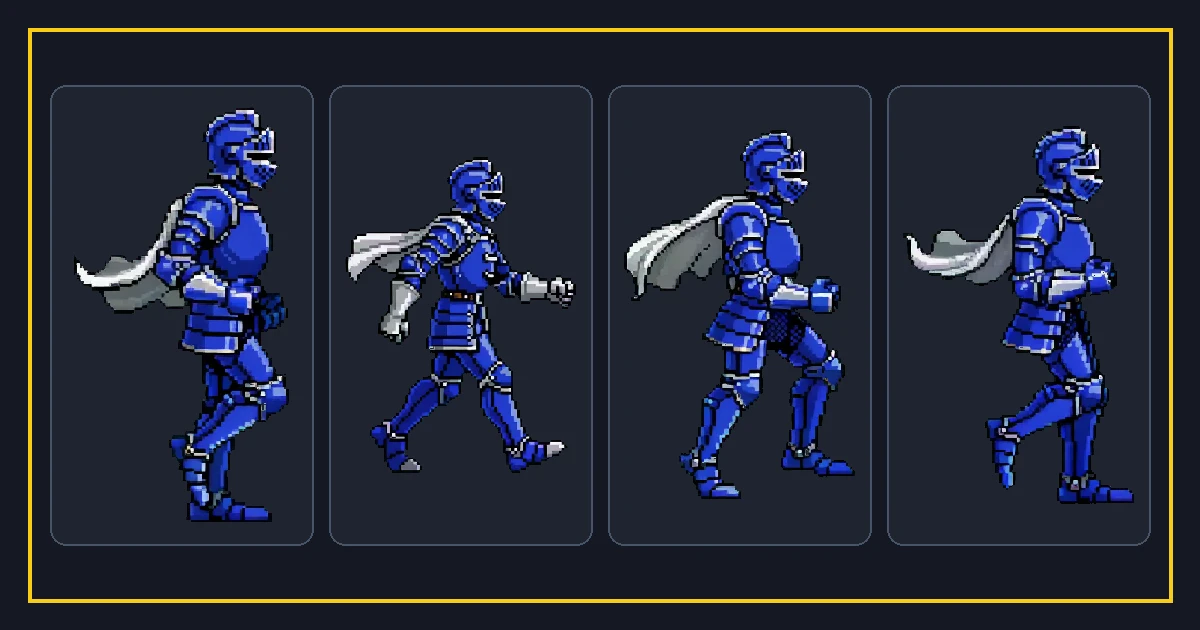
A sprite sheet is one image that holds every frame of an animation in a tidy grid. Games load a single file, then draw one rectangle at a time to make a character walk, run, or attack. It is one of the oldest and most reliable tricks in 2D games, and it still beats loading dozens of tiny files.
The tricky part is not drawing the frames. It is keeping every frame the same size, aligned to the same baseline, and packed so the engine can find each one. This guide walks through the whole job, from raw frames to a tested, looping sheet that comes with a manifest describing every rectangle.
What a sprite sheet actually needs
At minimum, a sheet is a grid. Every cell has the same width and height. The character sits in the same spot inside each cell so the animation does not jitter. If a walk cycle bobs up and down by ten pixels between frames, the sprite will look like it is having a seizure on screen.
A good sheet also needs a transparent background, consistent padding, and a known layout. Padding is empty space around each frame. It stops the edge of one frame bleeding into the next when the engine samples pixels with filtering on. Without padding, you often get thin colored lines at the borders of your sprite.
Finally, a sheet is easier to use when it ships with metadata. That metadata says which rectangle belongs to which frame and how fast to play them. Some teams hand-write it. A purpose-built tool writes it for you, and that is the part most tutorials skip.
Decide the frame size, layout, and padding
Start from the biggest pose. Measure the widest and tallest the character ever gets, then round up. If the character is 48 by 64 pixels at the widest, use 64 by 64 cells so you have breathing room. Larger cells waste memory but protect you from clipping a sword swing or a cape.
Next pick a layout. A single horizontal row is the easiest to reason about and the easiest to slice. A grid with several rows saves width when you have many frames. Both work; just be consistent, and record the columns and rows somewhere.
Add two to four pixels of padding between cells. If your engine uses bilinear filtering or you scale the sprite up, use more. Nearest-neighbor filtering with integer scaling needs the least. Whichever you choose, keep it the same across the whole sheet so slicing stays predictable.
Draw or source the frames
You can draw each pose by hand, generate frames from a short video, or produce them with an AI image workflow. Hand drawing gives the most control over style. Video and AI give speed, but you must check that the character stays the same size and stays centered across frames, because nothing breaks a loop faster than a character that drifts.
A practical pattern is to animate one clean key pose, then derive the in-between frames. Keep the head height and foot baseline locked. If you generate frames from footage, pick a camera that does not move, or the background will jump between cells.
When you have your frames, name them in order. Frame order is the animation. If the order is wrong, the timing will look wrong even when every drawing is perfect.
Pack the frames into one aligned image
Packing means placing each frame into its cell on one canvas. You can do this by hand in an image editor, but it is slow and error-prone once you pass a dozen frames. A free browser tool does it in seconds and keeps the baseline aligned for you, which is exactly what the sprite sheet maker is for.
The steps are simple. Upload your frames, set the cell size and padding, choose the column count, then export. The output is a PNG with an alpha channel plus a manifest.json that records the rectangle, frame rate, and loop flag for every frame. Because the rectangles are written down, your engine never has to guess the grid.
Save the manifest next to the PNG. It is small, it travels well, and it is the difference between a sheet that works everywhere and a sheet that only works in the one tool that made it.
Test the loop before you ship it
Always preview the animation. A still sheet hides timing problems that jump out the moment it plays. Check the loop point first: does the last frame flow back into the first without a pop? If the character snaps, you are missing a transitional pose or the first and last frames are too similar.
Check the speed next. Eight frames per second feels like a classic hand-drawn walk. Twelve to fifteen reads as smoother and more modern. Fast action can go higher. Adjust the frame rate in the manifest rather than redrawing the art.
Finally, drop the sheet into your engine and play it at game scale. What looked fine at 400 percent zoom can look mushy or jittery at the real size. Catching that now is cheaper than catching it after a build.
Common mistakes that waste a whole afternoon
The most common mistake is uneven cells. One frame is 63 pixels wide instead of 64, and suddenly every frame after it is offset. Always verify that the sheet width divides evenly by the column count.
The second is a missing or wrong manifest. People slice by hand, forget the frame count, and then wonder why the last two frames are cut off. If the manifest says four frames and the sheet has five, something is off.
The third is forgetting the alpha channel. A sheet saved without transparency shows a hard rectangle around the character. Export as PNG, not JPG, and confirm the background is actually transparent before you call it done.
FAQ
Frequently asked questions.
Do I need a manifest to use a sprite sheet?+
What file format should a sprite sheet be?+
How many frames per second should I use?+
Can I make a sprite sheet from a video?+
Is it free to make a sprite sheet here?+
Try it yourself
- Sprite Sheet Maker — Upload frames and pack an alpha PNG atlas with a matching JSON manifest — free.
- Video to Sprite Sheet — Turn a short MP4 or MOV into evenly spaced frames and a loop-ready sheet.
- Sprite Animator — Preview a sprite sheet as a looping animation and tune the frame rate.
- Sprite Sheet Slicer — Cut a packed sheet back into individual frames by grid or cell size.
- SpritesGen Pricing — Free Browser Tools & AI Credits