How to Import a Sprite Sheet in Phaser 3
November 5, 2026 · 6 min read
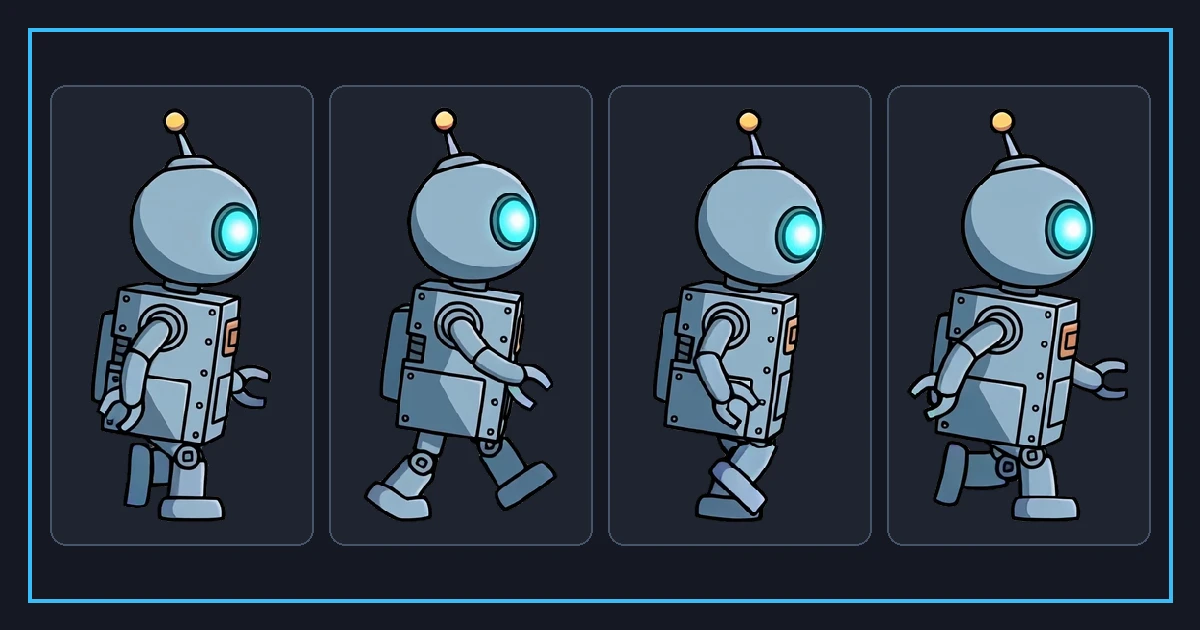
Phaser 3 makes sprite sheet animation straightforward once you know two calls: load.spritesheet to register the image and its frame size, and anims.create to define how frames play. Everything else is play and stop.
This guide shows the exact code shape for a walk cycle, explains how frame sizes map to the sheet, and covers the mistakes that produce a blank sprite or a one-frame flash.
Load the sheet with the right frame size
In your scene preload method, call this.load.spritesheet with a key, the file path, and a config object that holds frameWidth and frameHeight. Those two numbers are the cell size of your sheet.
If your sheet has padding or spacing between cells, the config also takes margin and spacing. Margin is the empty border around the whole sheet. Spacing is the gap between cells. Get these wrong and the frames will be offset or sliced through the character.
The frame size must match the sheet exactly. If the image is 512 pixels wide and each cell is 64, you have eight columns. Phaser computes the rest of the grid from the image size and the frame size.
Create an animation from frame numbers
In create, call this.anims.create with a key, an array of frames, a frameRate, and a repeat value. Build the frame array with this.anims.generateFrameNumbers, passing the sheet key and a start and end index.
If your walk cycle uses frames zero through five, generate those numbers. If the walk lives in the middle of a bigger sheet, pass the correct start and end so you do not animate the idle frames too.
Set repeat to minus one for an endless loop, or a number for a fixed number of repeats. A one-shot attack uses zero. A looping idle uses minus one. This one value decides whether an animation repeats forever or plays once.
Play the animation on a sprite
Create a sprite with this.add.sprite at the position and with the sheet key. Then call sprite.play with your animation key. The sprite will start from the first frame of the animation and run at the frame rate you set.
To change animations, call play with a different key. Phaser stops the previous animation and starts the new one. For transitions that should wait for the current animation to finish, listen for the animationcomplete event before switching.
If you need to react to the loop point, the animationupdate and animationcomplete events give you hooks. Use them to trigger footsteps, sounds, or state changes at the exact frame.
Matching your manifest numbers
If your sheet came with a manifest.json, read the frame rate and loop flag from it. Use that frame rate in anims.create and set repeat to minus one when loop is true.
The frame count in the manifest tells you the end index for generateFrameNumbers. If the manifest says six frames, your range goes from zero to five. Off-by-one errors here are the usual cause of a single-frame or empty animation.
Keep the manifest beside the PNG in your assets folder. It is a tiny file and it saves you from re-measuring the grid every time you add a new character.
Common Phaser pitfalls
The first is a wrong frameWidth or frameHeight, which cuts the character in half or leaves big gaps. Double-check against the sheet dimensions and the column count.
The second is loading the sheet as a plain image instead of a spritesheet. A plain image has one frame, so animation does nothing. Use load.spritesheet, not load.image.
The third is a frame range that includes frames from another animation. Count carefully, or generate the range from the manifest. A fourth is forgetting to set repeat, which makes an idle play once and freeze on the last frame.
Organizing animations for a state machine
Real games rarely play one animation. A player has idle, walk, jump, and attack, and they must switch cleanly. Instead of scattering anims.create calls, define them once at startup and give each a clear key such as idle or walk.
Wrap the switching in a small function. It plays the new animation, stops the old one, and guards against replaying the same animation every frame. Replaying the current animation restarts it, which makes a walk cycle stutter. Check the current key before you call play.
For actions that must finish before the next state, listen for animationcomplete. A jump or attack should not be interrupted by movement input until it returns. Use the event to flip a busy flag that the input handler respects.
Keep frame rates matched to the art. If the walk was drawn for eight frames per second and the run for twelve, set each animation independently rather than forcing one global rate. The manifest lists the intended rate per animation, so read it per clip.
Group related animations on the sheet so their frame ranges are close, then build each range with generateFrameNumbers. Clean ranges make the config readable and reduce off-by-one bugs when you add a new pose.
Loading order also matters. Register every animation key in the scene create step before any sprite calls play. If a sprite asks for a key that does not exist yet, Phaser silently does nothing and the sprite shows its first frame, which looks like a broken sheet.
Log the animation key and current frame while debugging. Most phantom bugs, such as a sprite frozen on one frame, come from a wrong range or a missing repeat value, and a quick log shows which it is. Confirm each key exists once, and reuse it everywhere. Keep the key names short and stable so a typo is obvious.
FAQ
Frequently asked questions.
What is the difference between load.spritesheet and load.image in Phaser?+
How do I loop an animation forever in Phaser 3?+
How do I handle padding between frames?+
Why does my sprite show only one frame?+
Try it yourself
- Sprite Sheet Maker — Upload frames and pack an alpha PNG atlas with a matching JSON manifest — free.
- Sprite Animator — Preview a sprite sheet as a looping animation and tune the frame rate.
- Sprite Sheet to GIF — Convert a sprite sheet back into a looping GIF or WebP preview.
- How to Import a Sprite Sheet in Godot 4